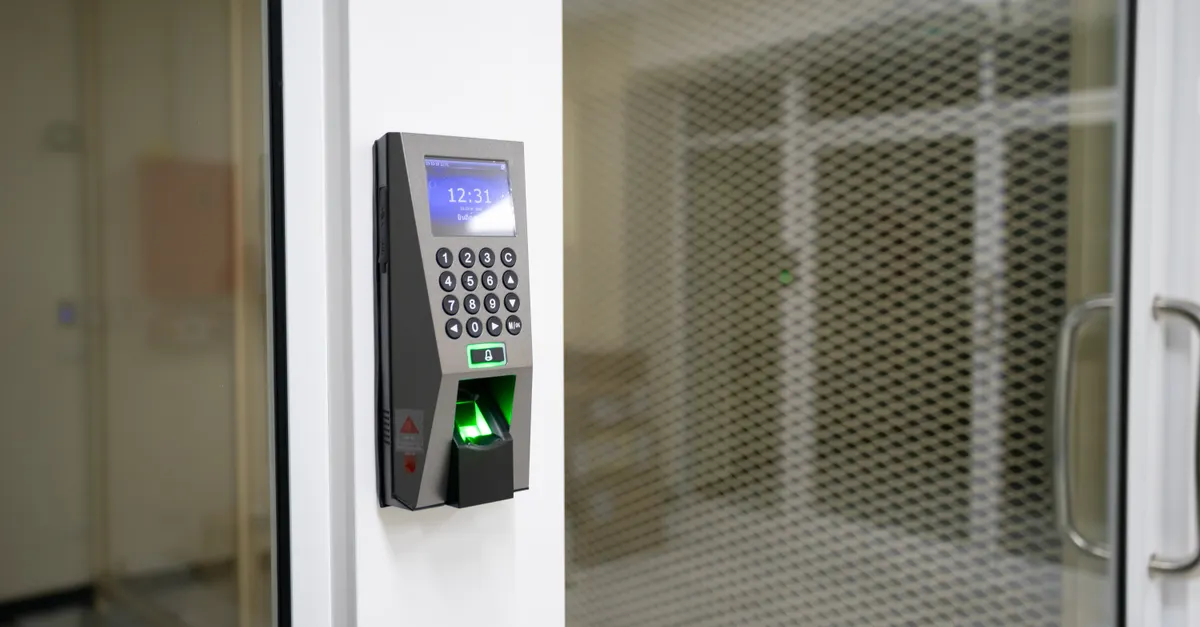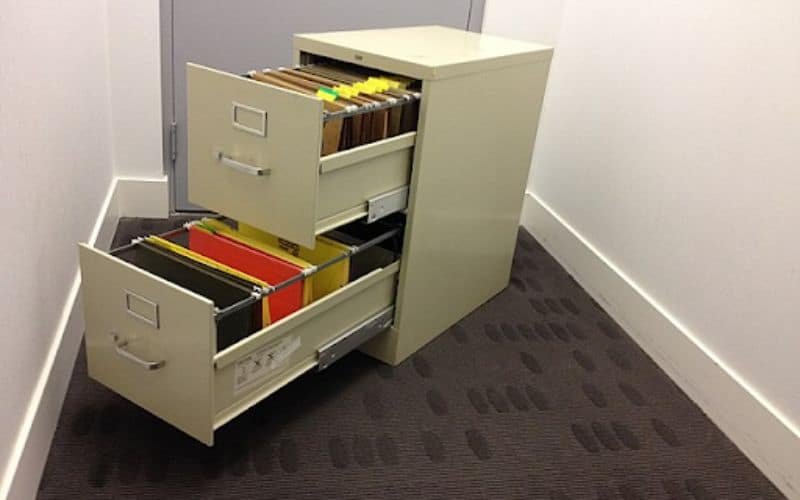
Smart file cabinet locks offer a modern, convenient way to secure sensitive documents in offices, schools, and even homes. These high-tech locks often use Bluetooth and app-based controls, making them easy to manage—until something goes wrong. When connectivity issues, app malfunctions, or unresponsive locks occur, it’s important to know how to troubleshoot and fix the problem efficiently. This guide will walk you through practical steps for smart file cabinet lock repair, focusing on app and Bluetooth troubleshooting, and help you restore both security and convenience.
If you’re dealing with a persistent issue, or if your lock uses a different technology, you may also find value in related resources such as office storage cabinet lock repair or exploring fixes for battery powered file cabinet lock fix. For now, let’s focus on resolving problems specific to smart locks with app and Bluetooth features.
Common Issues With App-Controlled File Cabinet Locks
Smart locks for file cabinets are designed to streamline access, but several issues can disrupt their operation. The most frequent problems include:
- Bluetooth connection failures between the lock and your smartphone or tablet
- App crashes or freezing during operation
- Unresponsive lock mechanisms despite successful app connection
- Incorrect or forgotten digital credentials
- Firmware or software update errors
Understanding these common problems is the first step toward effective smart file cabinet lock repair. In the following sections, we’ll break down troubleshooting steps for each scenario.
Initial Troubleshooting Steps for Smart Lock Failures
Before diving into advanced diagnostics, start with these basic checks:
- Check power supply: Ensure the lock’s batteries are charged or replaced. Low power can cause erratic behavior or total failure.
- Restart your smartphone and relaunch the lock’s app.
- Verify that Bluetooth is enabled on your device and that you’re within range (typically under 10 meters).
- Look for physical obstructions or metal interference that could block the Bluetooth signal.
- Update the lock’s app to the latest version available in your app store.
If these steps don’t resolve the issue, proceed to more targeted troubleshooting.
Bluetooth Connectivity Problems and Solutions
Bluetooth is the backbone of most smart file cabinet locks. If you’re struggling with pairing or maintaining a connection, try these steps:
- Forget and re-pair the device: In your phone’s Bluetooth settings, remove the lock from the paired devices list and reconnect from scratch using the app.
- Move closer to the lock and eliminate any physical barriers between your phone and the cabinet.
- Turn Bluetooth off and on again on your device.
- Restart both the lock (if possible) and your smartphone.
- Check for firmware updates for the lock via the app, as outdated firmware can cause connectivity issues.
If you’re still unable to connect, consult the lock manufacturer’s troubleshooting guide or consider reaching out to a professional locksmith for further assistance.
App Malfunctions and Unresponsive Controls
When the companion app fails to respond or crashes frequently, it can render your smart lock unusable. Here’s how to address app-related problems:
- Clear the app’s cache and data through your phone’s settings.
- Uninstall and reinstall the app to ensure you have a clean, updated version.
- Check for device compatibility—some older phones or operating systems may not support the latest app features.
- Ensure your phone’s operating system is up to date.
- Try accessing the lock from a different device to rule out hardware issues with your phone.
If the app remains unresponsive, contact the lock’s customer support or visit a trusted locksmith for hands-on help.
Resetting and Reprogramming Your Smart File Cabinet Lock
If you’ve forgotten your digital credentials or the lock is stuck in an unresponsive state, a reset may be necessary. Most smart locks have a reset button or a sequence of actions (like holding down a specific button for several seconds). Refer to your lock’s manual for the exact process.
After resetting, you’ll need to reprogram the lock using the app, which typically involves:
- Pairing your device via Bluetooth
- Setting up new access codes or digital keys
- Testing the lock to confirm successful setup
For more detailed instructions on resetting and setting new codes, you can review the file cabinet lock reset guide.
When to Seek Professional Help
While many smart file cabinet lock repair tasks can be handled with basic troubleshooting, there are times when professional assistance is the safest and most efficient solution. Consider calling a locksmith if:
- The lock remains unresponsive after all troubleshooting steps
- There are signs of physical damage or tampering
- You’re unable to reset or reprogram the lock
- Firmware updates fail or cause new issues
A professional locksmith can diagnose complex electronic or mechanical faults, replace damaged components, and ensure your cabinet remains secure. For more information on traditional lock repairs, you might find this step-by-step guide to repairing a broken filing cabinet lock helpful.
Preventive Maintenance for Smart Cabinet Locks
Regular maintenance can help prevent many common issues with smart locks. Here are some tips:
- Replace batteries at recommended intervals to avoid sudden power loss
- Keep the lock and surrounding area clean and free of dust or debris
- Update the app and firmware as soon as new versions are released
- Check for signs of wear or corrosion on the lock’s exterior and address promptly
- Test the lock’s operation regularly, especially after software updates
Staying proactive with these steps can extend the life of your smart lock and reduce the likelihood of unexpected failures.
Related Repair Topics for Modern File Cabinet Locks
Smart locks come in many forms, including keypad, proximity sensor, and battery-powered models. If your cabinet uses a different access method or you’re experiencing other types of issues, you may benefit from these resources:
- For keypad issues, see keypad file cabinet lock repair for solutions to unresponsive buttons.
- If your lock uses proximity sensors, the file cabinet lock sensor issues guide covers troubleshooting for modern proximity locks.
Exploring these guides can help you address a broader range of cabinet lock problems and ensure your storage remains secure.
Frequently Asked Questions
How do I know if my smart file cabinet lock issue is due to Bluetooth or the app?
Start by checking if your phone can connect to other Bluetooth devices. If it can, the problem may be with the lock or its app. If the app crashes or fails to detect the lock, try reinstalling the app and updating your phone’s operating system. If Bluetooth pairing fails across devices, the lock itself may need repair or reset.
Can I reset my smart file cabinet lock without the app?
Most smart locks have a manual reset button or sequence (such as holding a button for a set period). Check your lock’s manual for instructions. After resetting, you’ll need to re-pair the lock with your app and set new credentials.
What should I do if my lock’s firmware update fails?
If a firmware update is interrupted or fails, try restarting both the lock and your phone, then attempt the update again. If the lock becomes unresponsive, consult the manufacturer’s support or contact a locksmith with experience in electronic lock repair.
Is it safe to attempt smart file cabinet lock repair myself?
Basic troubleshooting and resets are generally safe for most users. However, if you encounter persistent problems, physical damage, or are unsure about the process, it’s best to consult a professional locksmith to avoid further complications.