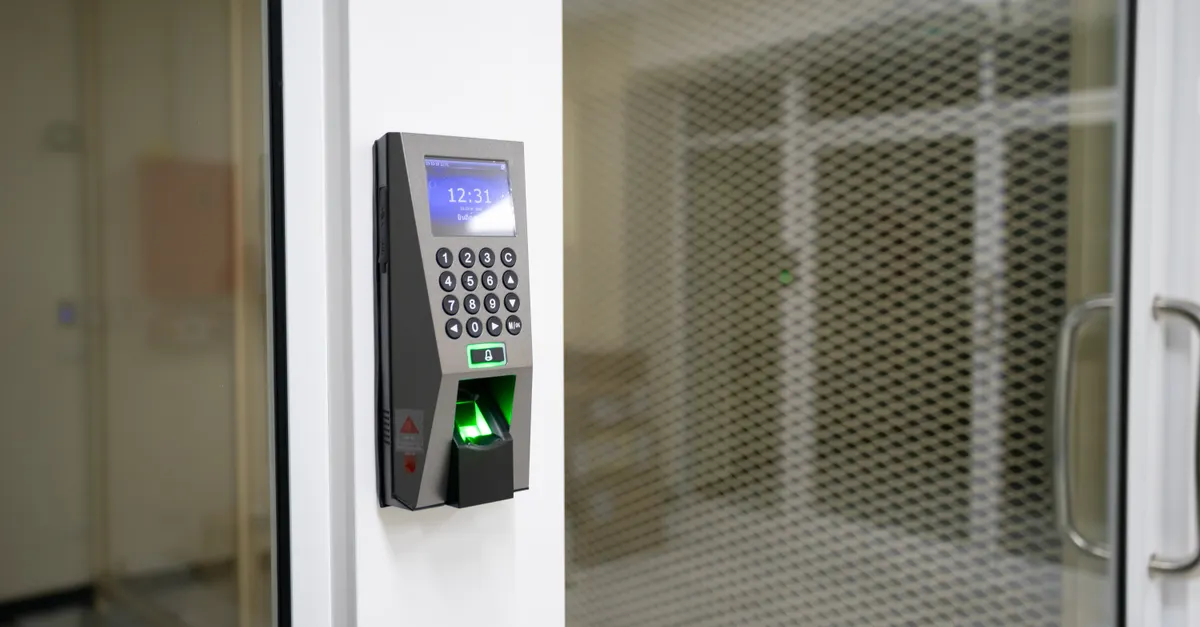
Smart deadbolt locks have become a popular choice for homeowners seeking convenience and enhanced security. However, there are times when you may need to reset your device—perhaps you’ve forgotten your access code, are troubleshooting connectivity issues, or are preparing to hand over your property to someone else. Understanding how to reset a smart deadbolt is crucial for maintaining control and security over your entry points.
This guide provides a clear, step-by-step process for resetting most smart deadbolt models, along with tips for troubleshooting and maintaining your lock. Whether you’re a first-time user or a seasoned smart home enthusiast, you’ll find practical advice to help you manage your lock with confidence.

If you’re also interested in keeping your lock running smoothly, check out our guide on how to change deadbolt batteries for quick maintenance tips.
When Should You Reset Your Smart Deadbolt?
There are several scenarios where performing a reset is necessary or highly recommended. Here are the most common reasons:
- Forgotten PIN or access codes: If you can’t remember your entry code, a reset allows you to start fresh.
- Device malfunction: Resetting can resolve software glitches or connectivity problems.
- Ownership change: When moving out or transferring ownership, resetting ensures previous codes and settings are erased.
- Security concerns: If you suspect unauthorized access, a reset helps restore control.
Before you begin, it’s wise to consult your lock’s user manual, as the process can vary between brands and models. However, most smart deadbolts follow a similar reset procedure.
Preparing for the Reset Process
Before attempting to reset your device, gather the following:
- User manual for your specific lock model
- Access to the interior side of the door (where the battery compartment and reset button are typically located)
- Fresh batteries if your lock is battery-powered
- Any required tools (usually a screwdriver)
It’s also a good idea to have your smartphone nearby if your lock is connected to a mobile app, as some resets require app interaction.
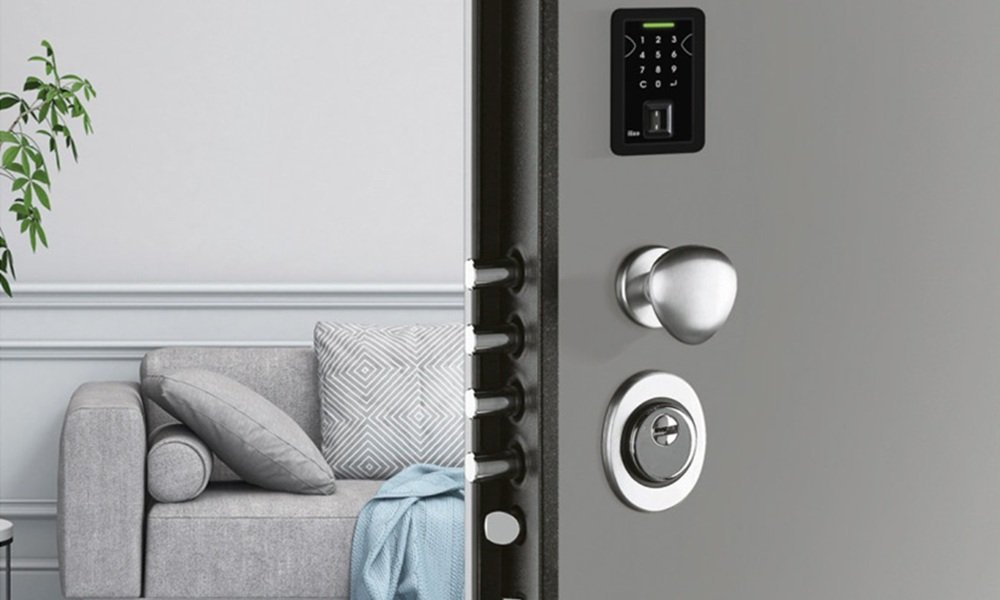
Step-by-Step Instructions for Resetting a Smart Deadbolt
While each brand may have slight differences, the following steps outline the general process for resetting a smart deadbolt:
-
Locate the Reset Button
Most smart deadbolts have a small reset button on the interior side, often inside the battery compartment. Remove the battery cover to access it. -
Remove the Batteries (if applicable)
Take out the batteries to ensure the lock is powered off. Wait a few seconds before reinserting them. -
Press and Hold the Reset Button
With the batteries out, press and hold the reset button. While holding it, reinsert the batteries. Continue holding the button for 10–20 seconds, or until you hear a beep or see an indicator light flash. -
Release the Reset Button
Once the lock signals that the reset is complete (via sound or light), release the button. -
Reprogram the Lock
After a reset, all previous codes and settings are erased. Follow your manufacturer’s instructions to set up new user codes and reconnect to your smart home system or app.
For detailed instructions specific to your device, refer to the user manual or manufacturer’s website. If you’re considering an upgrade or want to compare models, you can read this comprehensive review of top smart locks for more information.
Troubleshooting Common Issues After a Reset
Sometimes, a reset doesn’t go as planned. Here are some common problems and solutions:
- Lock won’t power on: Double-check that the batteries are fresh and installed correctly.
- Reset didn’t work: Ensure you followed the timing and sequence precisely. Repeat the process if necessary.
- Can’t reprogram codes: Some locks require a master code or initial setup via the app. Consult the manual for the correct procedure.
- Connectivity issues: After a reset, you may need to reconnect the lock to your Wi-Fi, Bluetooth, or smart home hub. Follow the pairing instructions provided by the manufacturer.
If you continue to experience problems, contact the manufacturer’s support team for assistance.
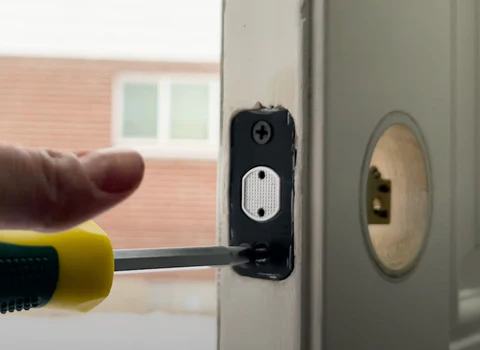
Tips for Maintaining Your Smart Deadbolt After a Reset
Proper maintenance ensures your lock functions reliably after a reset. Here are some best practices:
- Change batteries regularly: Low power can cause malfunctions. For guidance, see our article on how to change deadbolt batteries.
- Update firmware: Check for software updates via the manufacturer’s app to keep your lock secure and bug-free.
- Test codes periodically: Ensure all user codes work as expected, especially after a reset.
- Monitor for unusual activity: Many smart locks offer activity logs—review them for unauthorized access attempts.
- Keep your app secure: Use strong passwords and enable two-factor authentication if available.
For additional security advice, you might find our best home entry door security tips useful.
Smart Deadbolt Reset: Model-Specific Notes
While the general steps above apply to most brands, here are a few model-specific pointers:
- Schlage: Typically requires pressing the reset button while reinserting batteries. Some models require entering a programming code first.
- Kwikset: Often features a dedicated reset tool or pinhole. Follow the sequence precisely for a successful reset.
- August, Yale, and others: May require app-based resets or additional steps. Always consult the official instructions for your exact model.
If you’re using a Bluetooth-enabled device, our bluetooth deadbolt lock guide covers features and troubleshooting tips for these models.
Frequently Asked Questions
Will resetting my smart deadbolt erase all user codes and settings?
Yes, performing a factory reset will remove all stored codes, Wi-Fi or Bluetooth connections, and any custom settings. You’ll need to set up your lock from scratch after the reset.
How often should I reset my smart deadbolt?
Resets are typically only necessary when you encounter issues, forget codes, or transfer ownership. Routine resets are not required for normal operation.
Can I reset my smart deadbolt if I’ve lost the manual?
Most manufacturers provide digital copies of user manuals on their websites. You can also find step-by-step instructions for many models online or through the lock’s companion app.
Is it possible to reset a smart deadbolt remotely?
Some advanced models allow remote resets via their mobile app or cloud service, but most require physical access to the lock’s interior side. Always check your device’s capabilities before attempting a remote reset.
Conclusion
Knowing how to reset a smart deadbolt is essential for keeping your home secure and your lock functioning properly. By following the steps outlined in this article, you can confidently reset your device, troubleshoot common issues, and maintain optimal performance. For more information on smart lock security, see our article on can smart deadbolts be hacked to understand potential risks and how to protect your home.