Smart deadbolts are transforming home security by offering convenience, remote access, and enhanced control. If you’re looking to make your entryway smarter, connecting your deadbolt to WiFi is a crucial step. This process allows you to lock and unlock your door from anywhere, receive notifications, and integrate with other smart home devices. In this guide, you’ll learn how to connect smart deadbolts to WiFi in a straightforward, step-by-step manner, including tips for troubleshooting and maximizing your lock’s features.
Before diving into the setup, it’s important to choose the right smart deadbolt for your needs. If you’re considering options for shared living spaces, you might find the best deadbolt for shared houses article helpful for comparing models that balance security with ease of use.
Understanding WiFi-Enabled Deadbolts
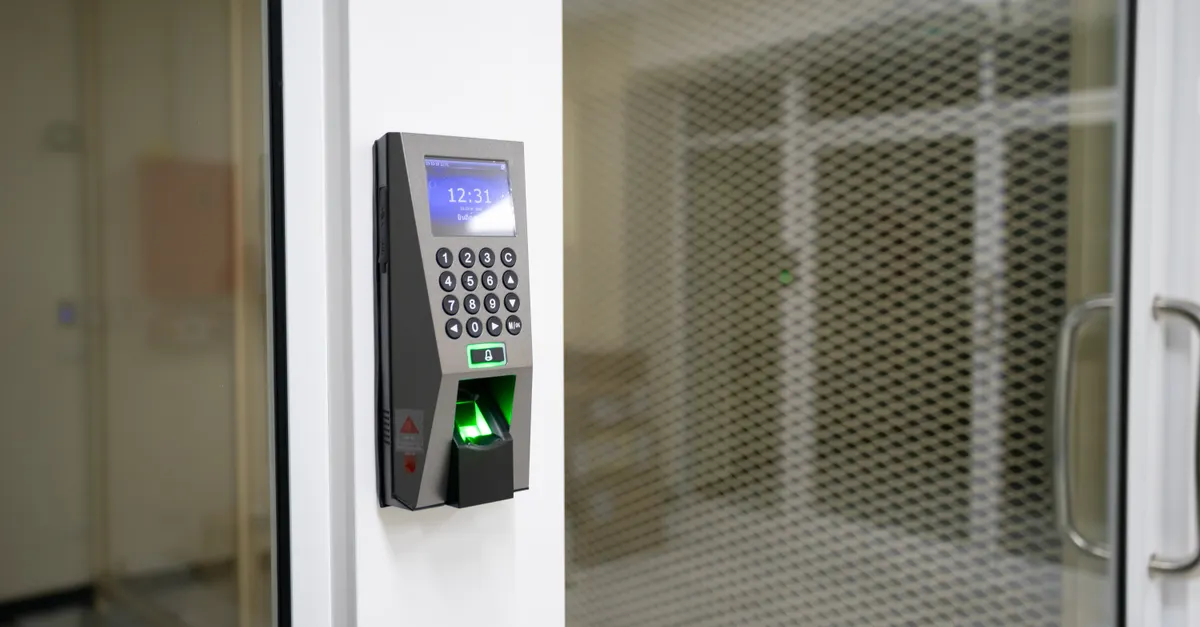
WiFi-enabled deadbolts are electronic locks that connect to your home network, allowing you to control access through a smartphone app or smart home hub. These devices typically offer features such as:
- Remote locking and unlocking
- Access logs and notifications
- Temporary or scheduled access codes
- Integration with voice assistants like Alexa or Google Assistant
Most modern smart locks are designed for easy installation and setup, but the process can vary slightly depending on the brand and model. Always consult your manufacturer’s instructions for specific details.
Preparing for Installation and WiFi Setup
Before you begin the process of linking your smart deadbolt to your wireless network, make sure you have the following:
- A compatible WiFi network (most require 2.4 GHz, not 5 GHz)
- The manufacturer’s mobile app installed on your smartphone
- Fresh batteries for the lock
- Your home’s WiFi password
- Physical installation of the deadbolt on your door
It’s also wise to check your door’s alignment and deadbolt performance, as a misaligned door can cause issues with smart lock operation. For more on this, see the guide on door alignment and deadbolt performance.
Step-by-Step Guide: Linking Your Smart Deadbolt to WiFi
Follow these steps to successfully connect your smart lock to your home network:
- Install the Deadbolt: Follow the included instructions to mount the lock on your door. Ensure the deadbolt moves smoothly and the door closes properly.
- Download the App: Most brands require their proprietary app for setup. Download it from the App Store or Google Play.
- Create an Account: Register for an account within the app. This is necessary for remote access and notifications.
- Initiate Pairing: Open the app and select the option to add a new device. The app will guide you through putting the lock into pairing mode, often by pressing a button on the lock.
- Connect to WiFi: When prompted, enter your WiFi credentials. Ensure you’re connecting to a 2.4 GHz network, as most smart locks do not support 5 GHz bands.
- Complete Setup: The app will confirm when the lock is connected. Test the lock by operating it through the app to ensure everything is working as expected.
If you encounter issues, double-check your WiFi signal strength near the door and ensure your phone is connected to the same network during setup.
Optimizing Your Smart Lock’s WiFi Connection
For reliable performance, your smart deadbolt needs a strong and stable WiFi signal. Here are some tips to ensure optimal connectivity:
- Position your router as close as possible to the door, or use a WiFi extender to boost the signal.
- Avoid placing the lock on metal doors or near large appliances, which can interfere with wireless signals.
- Keep your lock’s firmware updated through the app to benefit from security patches and new features.
- Regularly check battery levels, as low power can disrupt WiFi functionality.
Some advanced locks also support integration with smart home hubs, allowing you to control multiple devices from a single interface.
Troubleshooting Common WiFi Setup Issues
Even with straightforward instructions, you might run into challenges when linking your smart lock to your network. Here are some common problems and solutions:
- Lock won’t connect: Make sure you’re using the correct WiFi password and that your phone is on the same network. Restart your router if needed.
- App can’t find the lock: Ensure the lock is in pairing mode. Sometimes, removing and reinserting the batteries can help reset the device.
- Weak signal: If the app reports a poor connection, try moving your router closer or installing a WiFi extender.
- Firmware update fails: Keep your phone close to the lock and ensure both devices have a strong internet connection during updates.
If you’re still having trouble, consult the manufacturer’s support resources or consider professional assistance. For those debating between doing it yourself and hiring a pro, the article on DIY vs professional deadbolt installation offers a balanced perspective.
Enhancing Security and Convenience After Setup
Once your smart deadbolt is connected, take advantage of its advanced features to improve both security and convenience:
- Set up user codes for family, guests, or service providers.
- Enable notifications for lock/unlock events.
- Integrate with your home security system or smart home routines.
- Regularly review access logs to monitor who enters and leaves your home.
For seniors or those with accessibility needs, smart locks can provide safer and easier access. More information on this can be found in the article about deadbolt security for seniors.
Smart Deadbolt WiFi Integration: Best Practices
To ensure your smart lock remains secure and functional:
- Change access codes regularly and remove codes for users who no longer need access.
- Enable two-factor authentication in your lock’s app if available.
- Keep your app and lock firmware up to date.
- Review your home network’s security settings, including using a strong password and WPA3 encryption if supported.
For more detailed information on deadbolt types and security, you can refer to this comprehensive guide to deadbolt locks and home security.
FAQ: Smart Deadbolt WiFi Setup
Can I connect my smart deadbolt to 5 GHz WiFi networks?
Most smart locks are designed to work with 2.4 GHz WiFi networks only. This frequency offers better range and wall penetration, which is ideal for door locks. If your router supports both bands, ensure your phone and the lock are both on the 2.4 GHz network during setup.
What should I do if my smart lock keeps disconnecting from WiFi?
Frequent disconnections can be caused by weak signal strength, interference, or low battery. Try moving your router closer, using a WiFi extender, or replacing the lock’s batteries. Also, check for firmware updates in the app.
Is it safe to control my deadbolt over WiFi?
Yes, when set up correctly. Use strong, unique passwords for your WiFi and lock app, enable two-factor authentication, and keep your devices updated. Most reputable brands use encryption to protect your data and access codes.
Can I integrate my smart deadbolt with other smart home devices?
Many WiFi-enabled deadbolts can be linked with voice assistants like Alexa, Google Assistant, or Apple HomeKit. Check your lock’s compatibility and follow the manufacturer’s instructions for integration.
Connecting your smart deadbolt to WiFi brings a new level of convenience and security to your home. By following these steps and best practices, you can enjoy remote access, peace of mind, and seamless integration with your smart home ecosystem.